Home    Products    Users    Retailers    Support    Forums    Blog    Media    Do you EQ? Artist
 
 
You are here: Home > Support > Frequently Asked Questions > Electric Quilt 6 > Linking

Electric Quilt 6 Frequently Asked Questions


How do I use Karen Stone with EQ6?
Karen Stone installs EQ5 projects and a fabric library. There is no block library.

There is no block library because Karen rarely uses blocks set in a square set. She frequently sets blocks in paralellograms, triangles, and other settings. The Karen Stone CD installs projects, because it is important to see what context she sets the blocks in and so you also can get an accurate pattern.

If you have EQ5, these projects install into EQ5’s PJ5 folder.
If you have only EQ6, they install into the PJ6 folder.

To open a Karen K. Stone project in EQ6:

  1. Please see page 107 and follow along in the EQ6 User Manual.
  2. Click the Open button.
  3. Click the folder in the bottom-left corner marked "Click here to open a project not listed above."
  4. Change the "Look in" box to read C drive.
  5. If you have EQ5 as well as EQ6, browse to:
    C drive > My Documents > My EQ5 > PJ5
    If you only have EQ6, browse to:
    My Documents > My EQ6 > PJ5.
  6. In the Files of type box, drop the list down and click Previous EQ Versions. You will then see all your EQ5 projects listed.
  7. The Karen Stone projects all start with "KS_". Select a project and click Open.
  8. Note that your EQ5 project will be "Untitled," so you'll need to rename it when you save it in EQ6.

Once the project is open, you can save it in EQ6 so it will appear in your Existing Projects list in EQ6:

  1. Please see page 109 and follow along in the EQ6 User Manual.
  2. Click the Save button.
  3. "Save in" My Documents and double-click the My EQ6 > PJ6 folders.
  4. Type a name for the project in the File name: box.
  5. Click Save.

To link the Karen Stone Fabric Library:

  1. In EQ6, click LIBRARIES > Fabric Library.
  2. Click the Link Library button and click Auto Add.
  3. If Karen Stone is not added automatically, continue on with the following steps:
    1. Click the Add button and type: Karen Stone Fabrics.
    2. Click the Browse button.
      If you have EQ5 as well as EQ6
      , browse to:
      C drive > Program Files > Electric Quilt Company > EQ5 > Karen.
      If you only have EQ6, browse to:
      C drive > Program Files > Electric Quilt Company > EQ6 > Karen.
    3. Be sure to click on the Applique folder.
    4. Click OK, OK.
  4. Click Close to return to the library.


How do I link the Classic Appliqué (Baltimore Album, Folk Art, and 1920's & 1930's)?
You can link directly to the Classic Applique blocks.

  1. In EQ6, click LIBRARIES > Block Library.
  2. Click the Link Library button and click Auto Add.
  3. If Classic Applique is not added automatically, continue on with the following steps:
    1. Click the Add button and type: Classic Applique Blocks.
    2. Click the Browse button.
      If you have EQ5 as well as EQ6
      , browse to:
      C drive > Program Files > Electric Quilt Company > EQ5 > Applique.
      If you only have EQ6, browse to:
      C drive > Program Files > Electric Quilt Company > EQ6 > Applique.
    3. Be sure to click on the Applique folder.
    4. Click OK, OK.
  4. Click Close to return to the library.


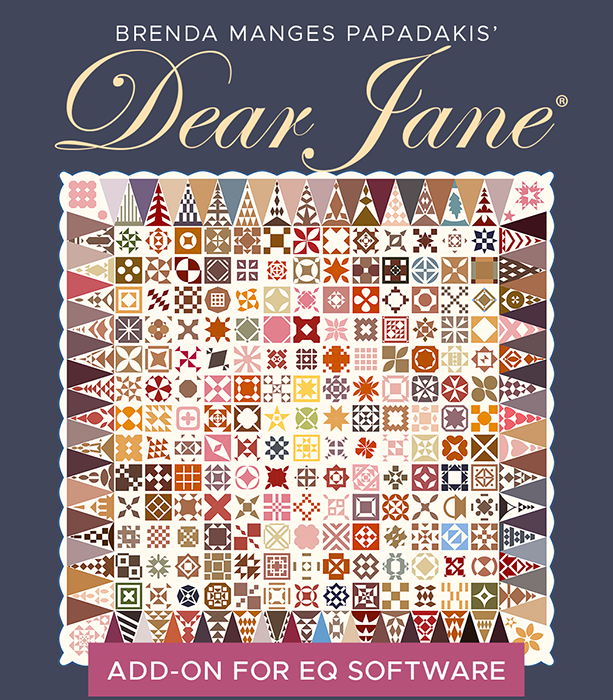
How do I link my Dear Jane Blocks?

  1. In EQ6, click LIBRARIES > Block Library.
  2. Click the Link Library button.
  3. Click the Add button.
  4. Type Dear Jane Blocks (or some name for the library, just remember what you call it).
  5. Click the Browse button.
  6. Navigate to find the Lib folder inside the Dear Jane folder. The default location for this product is:
    C:\Program Files\Electric Quilt Company\Dear Jane\Lib\
  7. Be sure to click on the Lib folder.
  8. Click OK, OK, Close to return to the library.

Dear Jane projects cannot be opened in EQ6 because they have blocks that are special to DJ which EQ6 cannot read.


How do I link my Dear Jane Fabrics?

  1. In EQ6, click LIBRARIES > Fabric Library.
  2. Click the Link Library button.
  3. Click the Add button.
  4. Type Dear Jane Fabrics (or some name for the library, just remember what you call it).
  5. Click the Browse button.
  6. Navigate to find the Lib folder inside the Dear Jane folder. The default location for this product is:
    C:\Program Files\Electric Quilt Company\Dear Jane\Lib\
  7. Be sure to click on the Lib folder.
  8. Click OK, OK, Close to return to the library.

Dear Jane projects cannot be opened in EQ6 because they have blocks that are special to DJ which EQ6 cannot read.


How do I link my Judy Martin STARS & SETS blocks?

  1. In EQ6, click LIBRARIES > Block Library.
  2. Click the Link Library button.
  3. Click the Add button.
  4. Type Judy Martin Blocks (or some name for the library, just remember what you call it).
  5. Click the Browse button.
  6. Navigate to find the Lib folder inside the Judy Martin folder. The default location for this product is:
    C:\Program Files\Electric Quilt Company\Judy Martin\Lib\
  7. Be sure to click on the Lib folder.
  8. Click OK, OK, Close to return to the library.


How do I link my Judy Martin STARS & SETS fabrics?

  1. In EQ6, click LIBRARIES > Fabric Library.
  2. Click the Link Library button.
  3. Click the Add button.
  4. Type Judy Martin Fabrics (or some name for the library, just remember what you call it).
  5. Click the Browse button.
  6. Navigate to find the Lib folder inside the Judy Martin folder. The default location for this product is:
    C:\Program Files\Electric Quilt Company\Judy Martin\Lib\
  7. Be sure to click on the Lib folder.
  8. Click OK, OK, Close to return to the library.


How do I use Stitched with Love with EQ6?
You can find the Stitched with Love project files, copy them, and paste them into the EQ6 projects folder.

  1. Click START > My Computer.
  2. Double-click C drive > Program Files > Electric Quilt Company > Magic > projects folders. It opens, displaying projects.
  3. Some of the projects contain only fabrics, blocks, or motifs. The projects you want (with the quilts) are the last nine projects in the list:
    • Chap 2a.pj4
    • Chap 2b.pj4
    • Chap 2c.pj4
    • Chap 2d.pj4
    • Chap 4a.pj4
    • Chap 4b.pj4
    • Chap 4c.pj4
    • Chap 1.pj4
    • Chap 3.pj4
  4. Highlight these projects. (Or highlight some, then repeat these directions to highlight the others.)
  5. Up at the top, click EDIT > Copy.
  6. Click START > My Documents.
  7. Double-click My EQ6 > PJ6 folders.
  8. Up at the top, click EDIT > Paste. You'll now have copies of the SWL projects in EQ6.

Note: These SWL projects are EQ4 projects. You need to open each one in EQ6 in order to use it:

  1. Please see page 107 and follow along in the EQ6 User Manual.
  2. Click the Open button.
  3. Click the folder in the bottom-left corner marked "Click here to open a project not listed above."
  4. "Look in" My Documents > My EQ6 > PJ6 folders.
  5. In the Files of type box, drop the list down and click Previous EQ Versions. You will then see all your EQ4 projects listed.
  6. Select a project and click Open.
  7. Note that your EQ4 project will be "Untitled," so you'll need to rename it when you save it in EQ6.

Once the project is open, you can save it in EQ6 so it will appear in your Existing Projects list in EQ6:

  1. Please see page 109 and follow along in the EQ6 User Manual.
  2. Click the Save button.
  3. "Save in" My Documents and double-click the My EQ6 > PJ6 folders.
  4. Type a name for the project in the File name: box.
  5. Click Save.


How do I use Quilted Diamonds with EQ6?
The Quilted Diamonds CD contains EQ projects from earlier versions of EQ. They are not libraries, and therefore can't be linked.

The easiest way to use the blocks from Quilted Diamonds projects in EQ6 is to import the blocks from the project, and save the blocks in My Library.

  1. First, create a My Library space for the blocks.
    1. Follow along on page 143 in the EQ6 User Manual.
    2. Click LIBRARIES > Block Library.
    3. Click the My Library section, then the Add Library button.
    4. Type Quilted Diamonds (or some name for the library, just remember what you call it).
    5. Start with 8 styles. (You can change this at any time if you need more.)
    6. Click OK.
  2. Next, you want to import Quilted Diamonds blocks into the Block Library. Be sure the Quilted Diamonds CD is in the CD drive.
    1. Follow along on page 134 in the EQ6 User Manual.
    2. The Block Library is still open, so click Import > From Project.
    3. Change the "Look in:" box at the top to look in the CD drive.
    4. Change the "Files of type:" box at the bottom to show "Previous EQ Versions."
    5. Select the first project and remember its name.
    6. Click Open. This will display all the blocks in the project in the library.
  3. Now, you need to copy and paste the blocks from the import section into the library you created.
    1. Click one block to select it, then press CTRL+A on your keyboard.
    2. Click the Copy button.
    3. Click the My Library section.
    4. Click the Quilted Diamonds library and select "Style 1."
    5. Click Paste.
    6. Click Save Library, then OK.
  4. Repeat steps 2b - 3f for the other projects. Put project 2 in style 2, project 3 in style 3, etc.
  5. If you wish to rename the Quilted Diamonds library styles to match the projects, see page 145.


How do I link AnglePlay?
You can link directly to the AnglePlay blocks.

  1. In EQ6, click LIBRARIES > Block Library.
  2. Click the Link Library button and click Auto Add.
  3. If AnglePlay is not added automatically, continue on with the following steps:
    1. Click the Add button and type: AnglePlay Blocks.
    2. Click the Browse button.
      If you have EQ5 as well as EQ6
      , browse to:
      C drive > Program Files > Electric Quilt Company > EQ5 > AnglePlay.
      If you only have EQ6, browse to:
      C drive > Program Files > Electric Quilt Company > EQ6 > AnglePlay.
    3. Be sure to click on the AnglePlay folder.
    4. Click OK, OK.
  4. Click Close to return to the library.


How do I link to my Dear Hannah blocks?
If you have EQ5 and EQ6: The Dear Hannah CD will automatically install the DH blocks into EQ5. You can link them to EQ6 by going into the EQ6 Block Library and clicking the Link Library button, then the Auto Add button. (See page 136 in the EQ6 User Manual.)

If you only have EQ6: The Dear Hannah CD will install the blocks on your hard drive. You can link them to EQ6 by going into the EQ6 Block Library and clicking the Link Library button, then the Auto Add button. (See page 136 in the EQ6 User Manual.)


I have the EQ5 Embroidery Upgrade. How do I get those in EQ6?
The EQ5 Embroidery Upgrade CD only works if you have EQ5 and it is installed. If EQ5 is not installed and you run the EQ5 Embroidery Upgrade you will break EQ6 and overwrite its new files with older versions.

There are different designs is these 3:
- Original EQ5 (add 1 link)
- EQ5 Embroidery Upgrade (add 3 links)
- EQ6 (already showing)

(General linking directions are on p.136-137 of the EQ6 User Manual.)

  1. LIBRARIES > Embroidery Library.
  2. Link button.
  3. Auto Add button. If that doesn't find them automatically, then...
  4. Click Add.
  5. Name the first one "EQ5 Amazing Designs".
  6. Browse to the folder containing the embroidery files. It will most likely be:
    C:\Program Files\Electric Quilt Company\EQ5\LIB
  7. Click OK.
  8. Select the entire path in the second line, right-click on it and choose Copy.
  9. Click OK to add the link.
  10. Click Add.
  11. Name the next one "EQ5 Cactus Punch".
  12. In the second line, right-click and choose Paste. Then click Browse and go one more folder in to the Cactus Punch folder. (It will most likely be):
    C:\Program Files\Electric Quilt Company\EQ5\LIB\Cactus Punch
  13. Click OK, OK.
  14. Click Add and name the third one "EQ5 Pfaff".
  15. Right-click and paste the path in again. Choose Browse. Go one more folder in to the Pfaff folder (It will most likely be):
    C:\Program Files\Electric Quilt Company\EQ5\LIB\Pfaff
  16. Click OK, OK.
  17. Click Add and name the last one "EQ5 Viking".
  18. Right-click and paste in the path. Choose Browse and go to the Viking folder:
    C:\Program Files\Electric Quilt Company\EQ5\LIB\Viking
  19. Click OK, OK.
  20. Click Close. You will be returned to the Embroidery Library and should see the new libraries in the list.


How do I link the original EQ5 Embroidery Library to EQ6?
Here's how:

  1. LIBRARIES > Embroidery Library.
  2. Link button.
  3. Auto Add button. If that doesn't find them automatically, then...
  4. Click Add.
  5. Name the first one "EQ5 Amazing Designs".
  6. Browse to the folder containing the embroidery files. It will most likely be:
    C:\Program Files\Electric Quilt Company\EQ5\LIB
  7. Click OK.
  8. Click Close. You will be returned to the Embroidery Library and should see the new libraries in the list.


How do I link BlockBase?
BlockBase should link automatically. Go to LIBRARIES > Block Library. Click Link Library. Click Auto Add.


How do I link STASH?
STASH should link automatically. Go to LIBRARIES > Fabric Library. Click Link Library. Click Auto Add.


How do I link Sew Precise 1 &2, 3 or 4?
Sew Precise (no matter the version) should link automatically. Go to LIBRARIES > Block Library. Click Link Library. Click Auto Add.


How do I link Town & Country Patchwork?

To link the Town & Country Blocks:

  1. In EQ6, click LIBRARIES > Block Library.
  2. Click the Link Library button and click Auto Add.
  3. If T&C is not added automatically, continue on with the following steps:
    1. Click the Add button and type: Town & Country Blocks.
    2. Click the Browse button. Go to:
      C drive > Program Files > Electric Quilt Company > Town and Country Patchwork > Lib
    3. Be sure to click on the Lib folder.
    4. Click OK, OK.
  4. Click Close to return to the library.

To link the Town & Country Fabrics:

  1. In EQ6, click LIBRARIES > Fabric Library.
  2. Click the Link Library button and click Auto Add.
  3. If T&C is not added automatically, continue on with the following steps:
    1. Click the Add button and type: Town & Country Fabrics.
    2. Click the Browse button. Go to:
      C drive > Program Files > Electric Quilt Company > Town and Country Patchwork > Lib
    3. Be sure to click on the Lib folder.
    4. Click OK, OK.
  4. Click Close to return to the library.


How do I link my EQ5 Fabric Library to EQ6?
You can link the fabrics we provided and any user fabrics you scanned and saved in your libraries.

To link the EQ5 Fabrics:

  1. In EQ6, click LIBRARIES > Fabric Library.
  2. Click the Link Library button and click Add.
  3. Type: EQ5 Fabrics.
  4. Click the Browse button. Go to:
    C drive > Program Files > Electric Quilt Company > EQ5 > Lib
  5. Be sure to click on the Lib folder.
  6. Click OK, OK.
  7. Click Close to return to the library.

To link the EQ5 User Fabrics:

  1. In EQ6, click LIBRARIES > Fabric Library.
  2. Click the Link Library button and click Add.
  3. Type: EQ5 User Fabrics.
  4. Click the Browse button. Go to:
    C drive > My Documents > My EQ5 > User
  5. Be sure to click on the User folder.
  6. Click OK, OK.
  7. Click Close to return to the library.


^ Top :: All Content on these pages, unless otherwise noted is Copyright © 1991-2008 :: < Home
by The Electric Quilt ® Company and may not be reproduced in any form.